> For the complete documentation index, see [llms.txt](https://motiongamesstudio.gitbook.io/magic-lightmap-switcher/llms.txt). Markdown versions of documentation pages are available by appending `.md` to page URLs; this page is available as [Markdown](https://motiongamesstudio.gitbook.io/magic-lightmap-switcher/using/creating-lighting-scenario.md).
# Creating Lighting Scenario
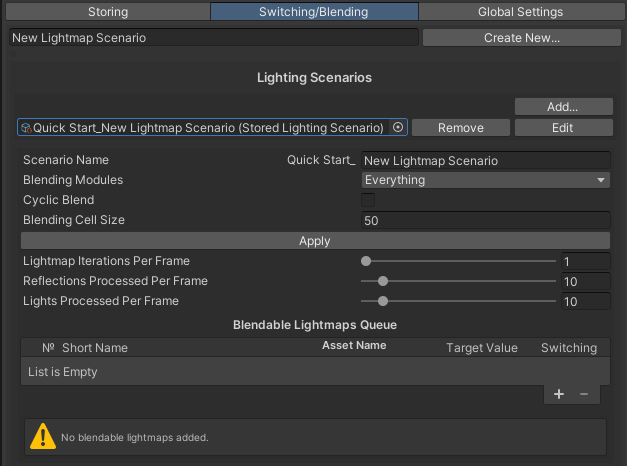
A [Lighting Scenario](/magic-lightmap-switcher/system-components/mls-manager-window.md#switching-blending-tab) is a container that contains references to data assets and provides options for configuring a blending queue.
The lighting scenario can be created automatically after baking presets in [queue](https://motiongamesstudio.gitbook.io/magic-lightmap-switcher/using/pages/8YPQr0qz2dggxQrJNWgM#id-1.1.2-queue) mode or manually.
To create a new lighting scenario, click **"Create New\..."** on the Switching/Blending tab of the [MLS Manager](/magic-lightmap-switcher/system-components/mls-manager-window.md) window.
After creation, the scenario will be automatically added to the list of scene scenarios.
Now you can add the previously saved data to the scenario. Click "+" in the Blendable Lightmaps Queue list and select the appropriate asset.
{% hint style="info" %}
Please note that the blending data is named according to the "prefix\_postfix" principle, where prefix is the name of the scene for which the data was saved, and postfix is the preset name or the Lightmap Name you entered.
{% endhint %}